Drive with CarPlay
Pelican is designed to minimize phone interactions while driving by providing a comprehensive CarPlay experience.
Connect your iPhone to your car and select Pelican on the CarPlay home screen.
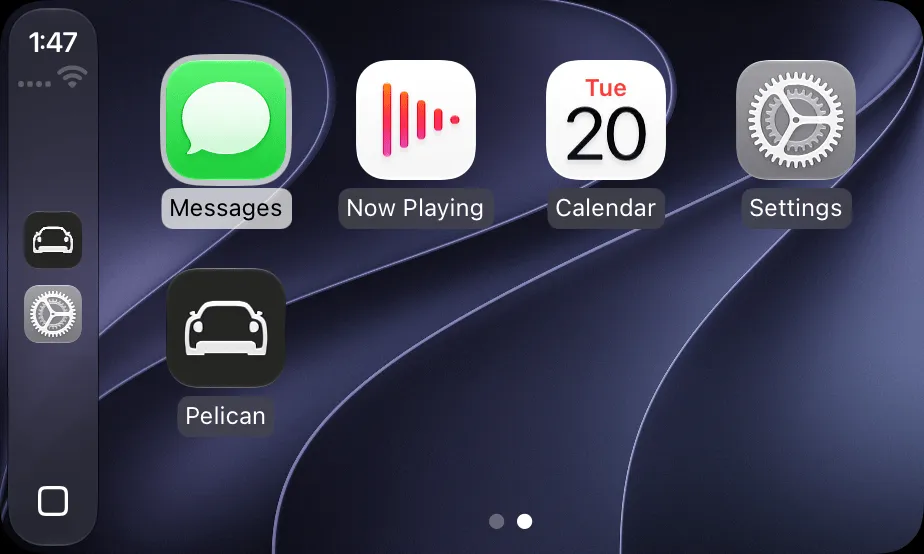
- Pelican
Pelican opens to the map.
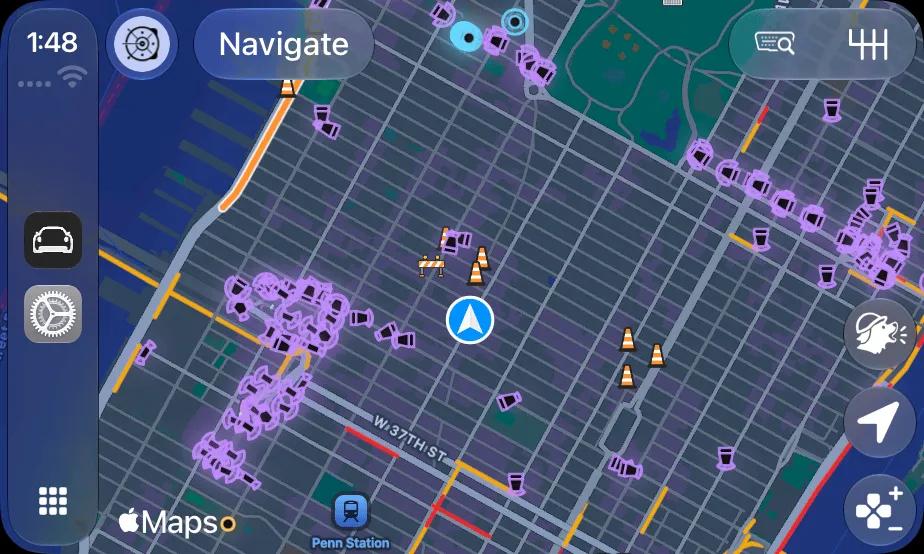
- Voice search
- Navigate
- Menu
- Scout report
- Zoom and pan
Pick a destination
- On the CarPlay map, press Navigate.
- Select a Quick Destination. Or press the keyboard button and search for a place.
A Quick Destination starts the route right away. Pelican learns your Quick Destinations as you drive, and you can pin your favorites in the Logbook.
To search, enter the place’s name, then select it in the list.
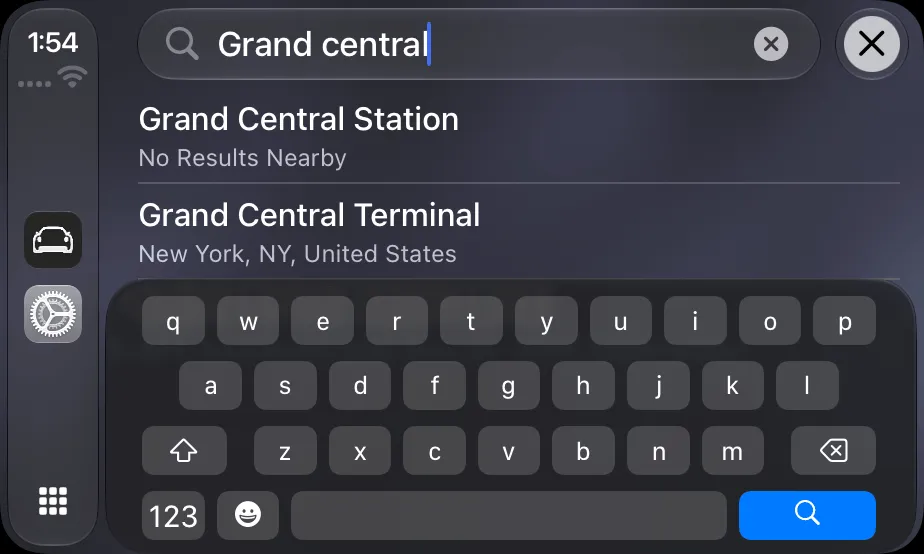
- Search field
- A place to go
Pelican shows the route and the other ways to get there. Select Go to start your trip.
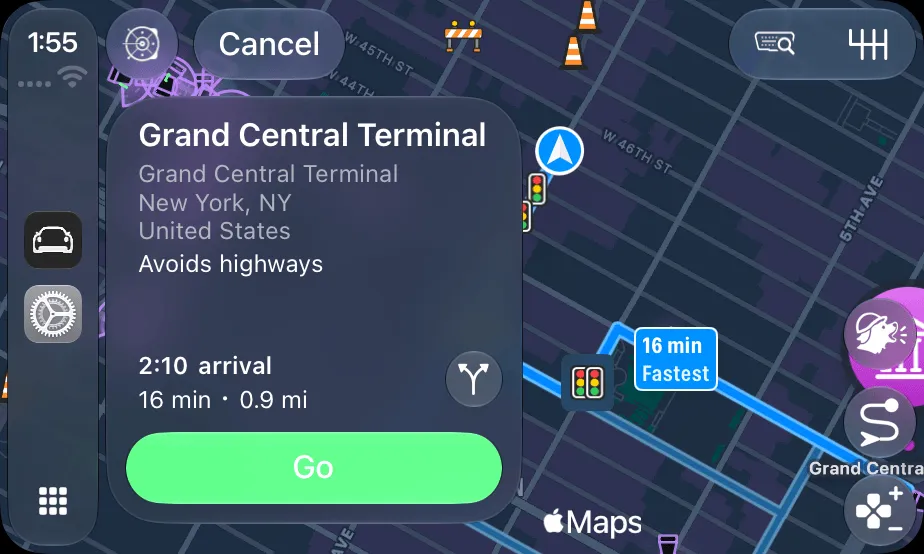
- Cancel
- Other routes
- Go
- Fastest route
Search with your voice
Press the voice search button, then say where you want to go. Pelican finds it for you. See Voice search.
End the route
Changed your plans? Press End route in the top bar.
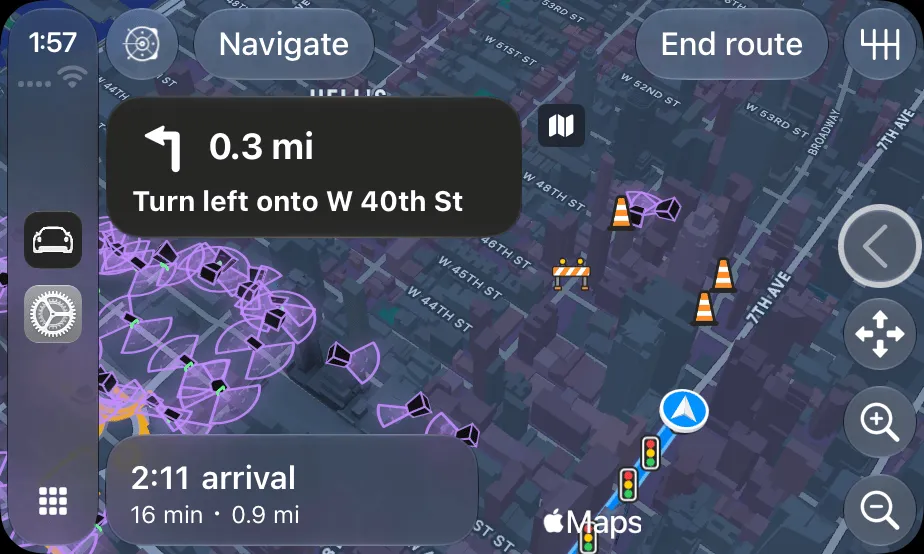
- Next turn
- Trip card
- End route
Make the screen yours
You can customize the placement of some widgets in CarPlay using Pelican’s widget layout editor for CarPlay. You can edit the layouts on your phone when parked or away from your car. See Widgets and layouts.
Report what you see
Spot a hazard? Select the Scout button to report what you see. Other drivers will immediately see your report on the map. See Report from CarPlay.
Put Pelican on the first page
CarPlay lets you customize the order that apps are shown from your iPhone’s CarPlay settings screen. You can move Pelican near the top of the list to have Pelican appear on the first page of CarPlay.
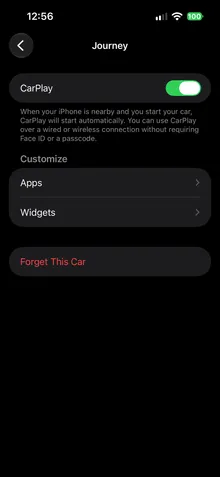
Open iOS Settings > General > CarPlay. Under My Car, tap your car.
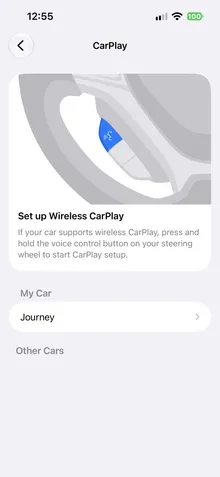
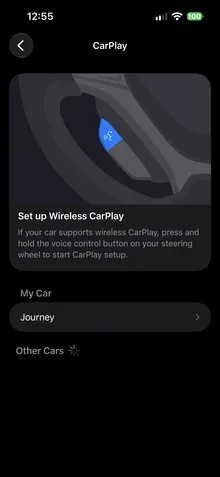
Under Customize, tap Apps.
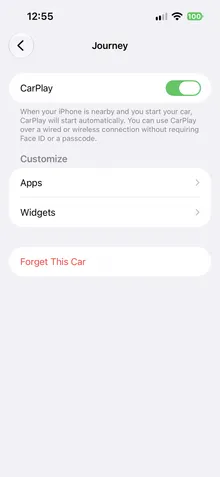
Touch and hold the handle beside Pelican, then drag Pelican to the top of Included Apps.
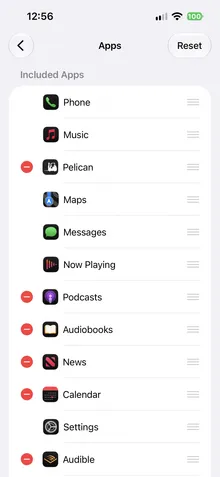
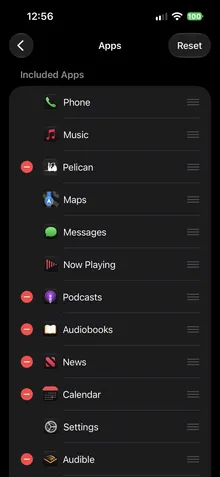
To go back to the order CarPlay started with, tap Reset on the Apps screen.
Where to next?
Nice drive! Pick what to try next: