First drive

Getting around Pelican

A look at Pelican's five main contexts.

Pelican’s context switcher is the main way you’ll get around with Pelican:

  • Your garage shows your cars.
  • Your logbook shows your address book, documents, records, trips, and scan sessions.
  • The map shows the world around you.
  • Your dashboards show custom-built charts and widgets.
  • Settings is where you go to customize Pelican.

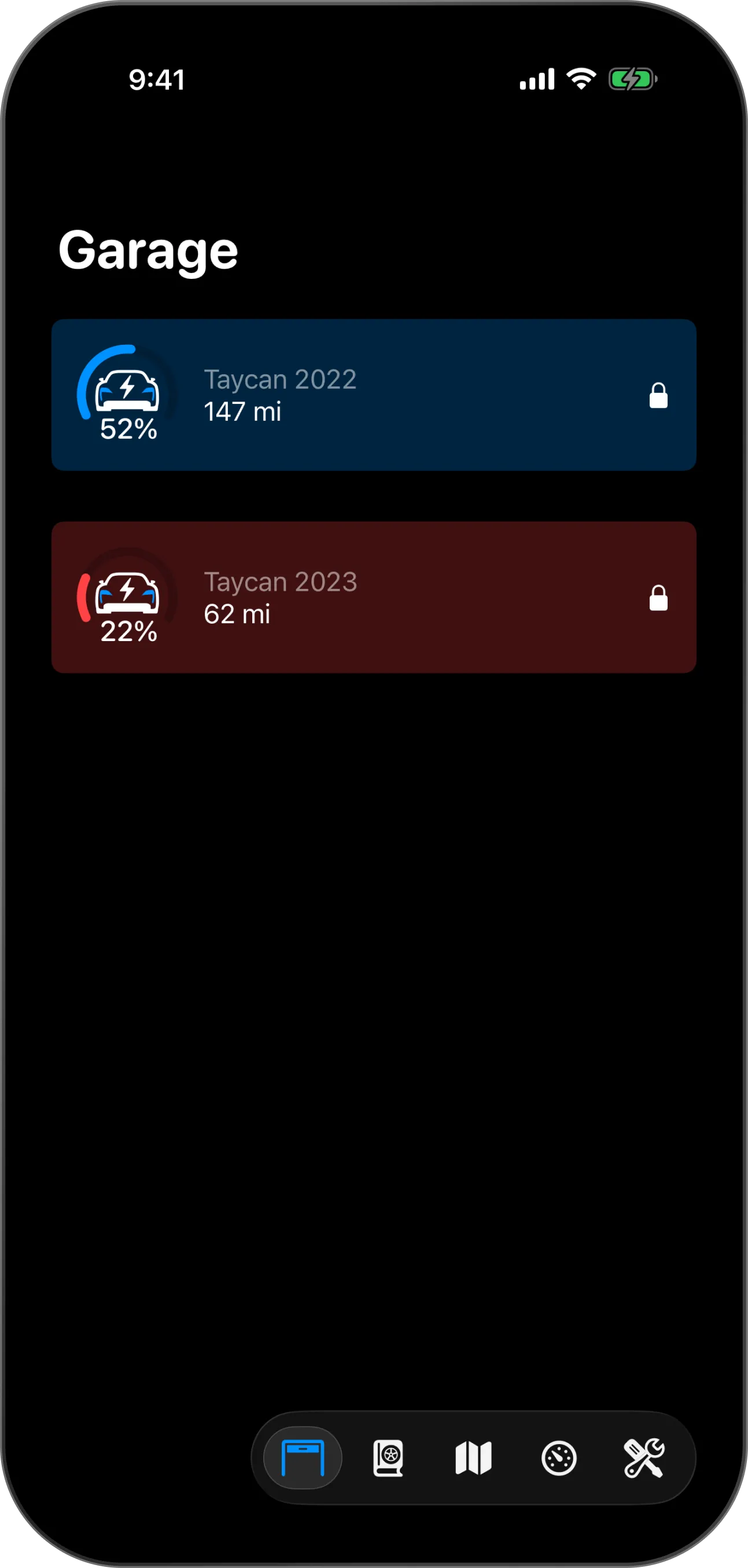
Your garage

The garage lists your cars. Tap car to open its page.
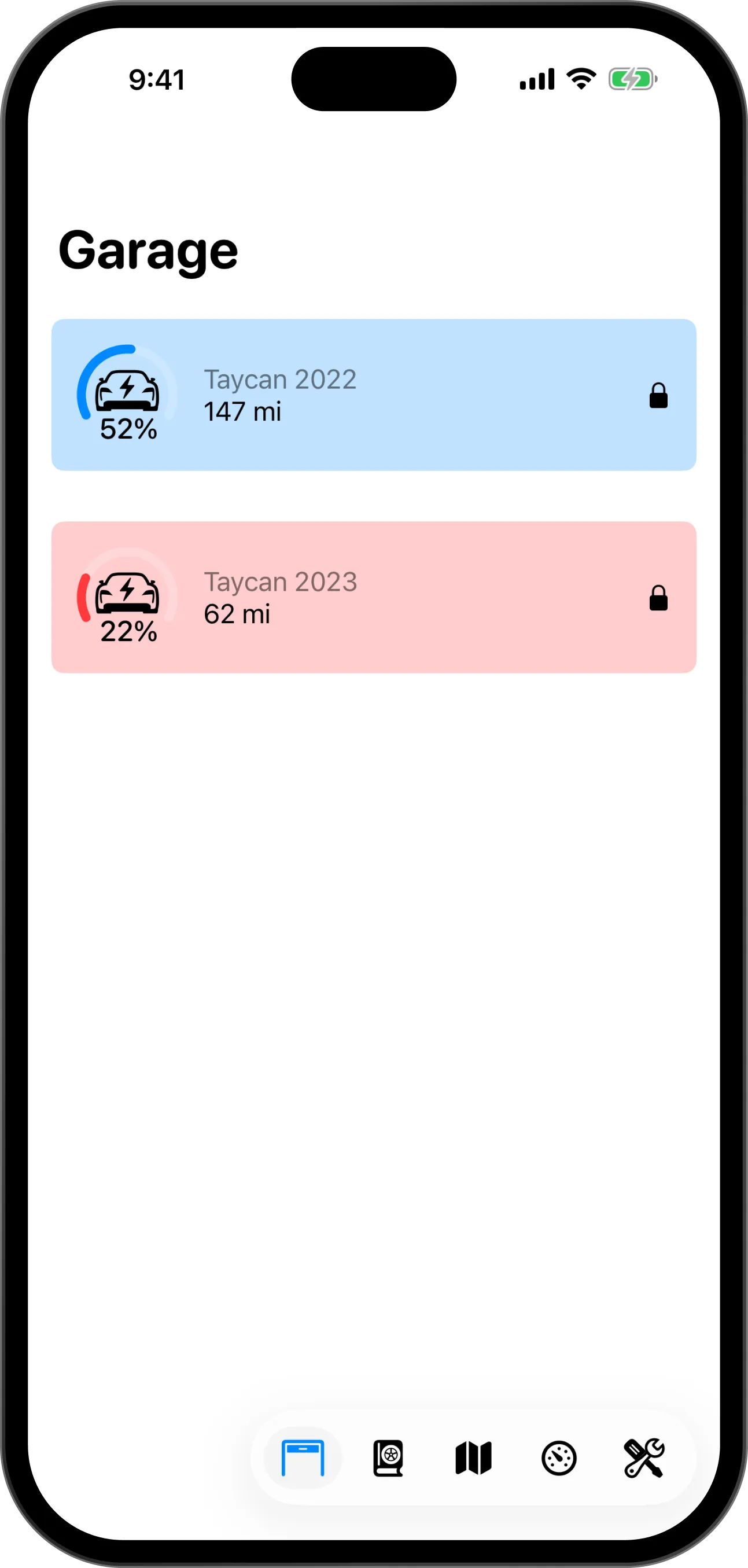
Your garage listing two cars, with a car, its battery level, its range and its button in the context switcher markedYour garage listing two cars, with a car, its battery level, its range and its button in the context switcher marked
Your carBattery or fuel levelRange leftYour garage
  1. Your car
  2. Battery or fuel level
  3. Range left
  4. Your garage

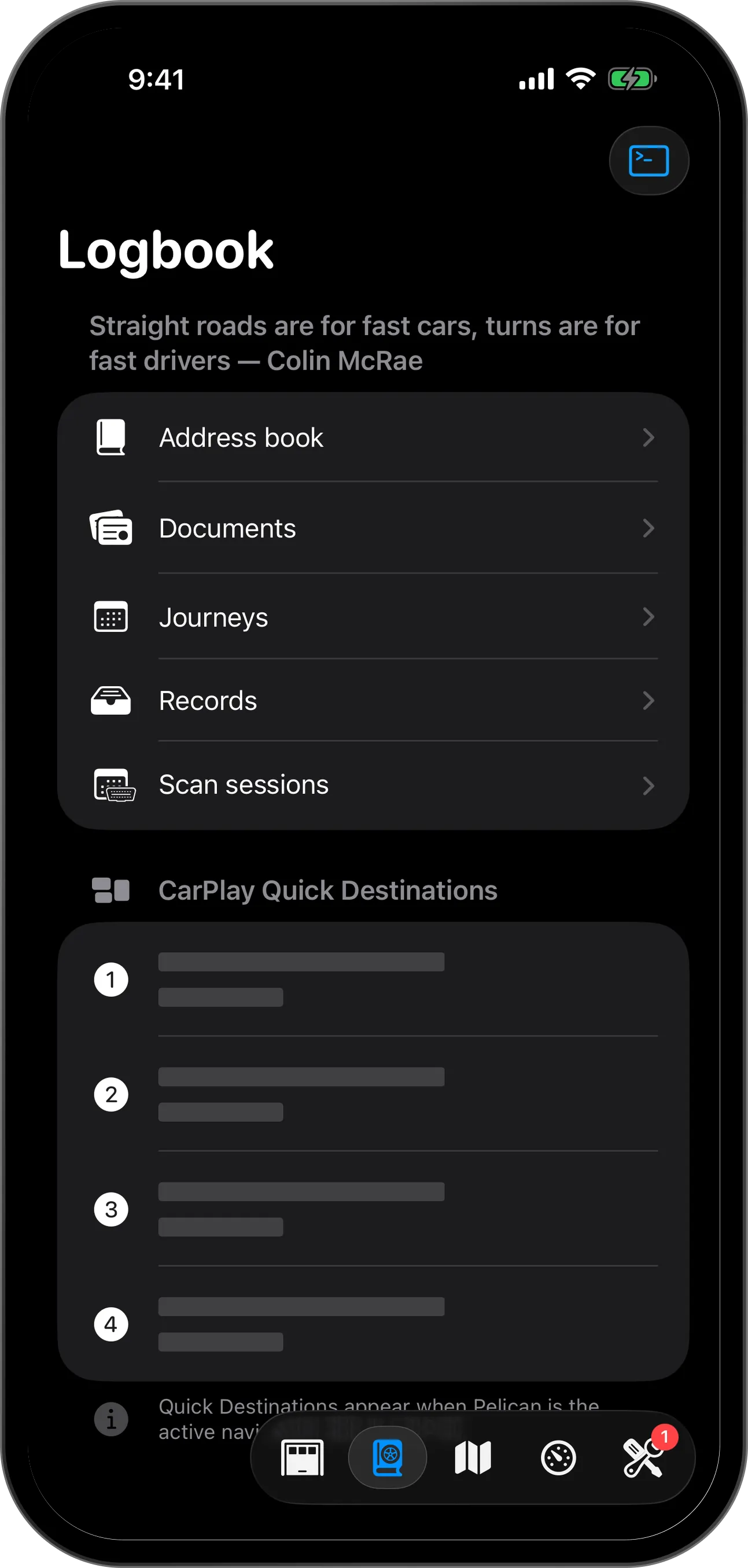
Your logbook

Your logbook keeps everything you record: documents, journeys, records and scan sessions.
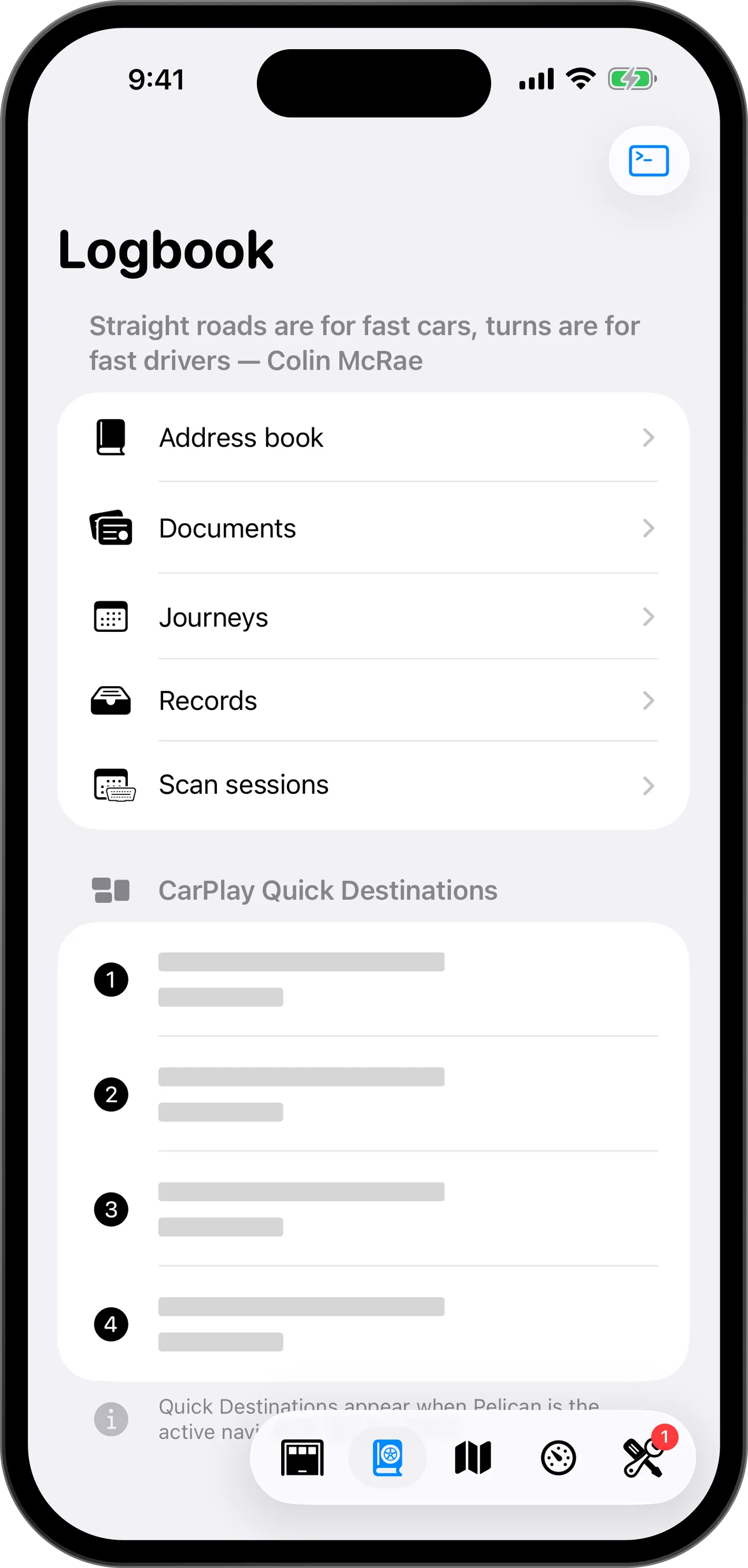
  1. Documents
  2. Journeys
  3. Records
  4. Scan sessions
  5. CarPlay Quick Destinations
  6. Your logbook

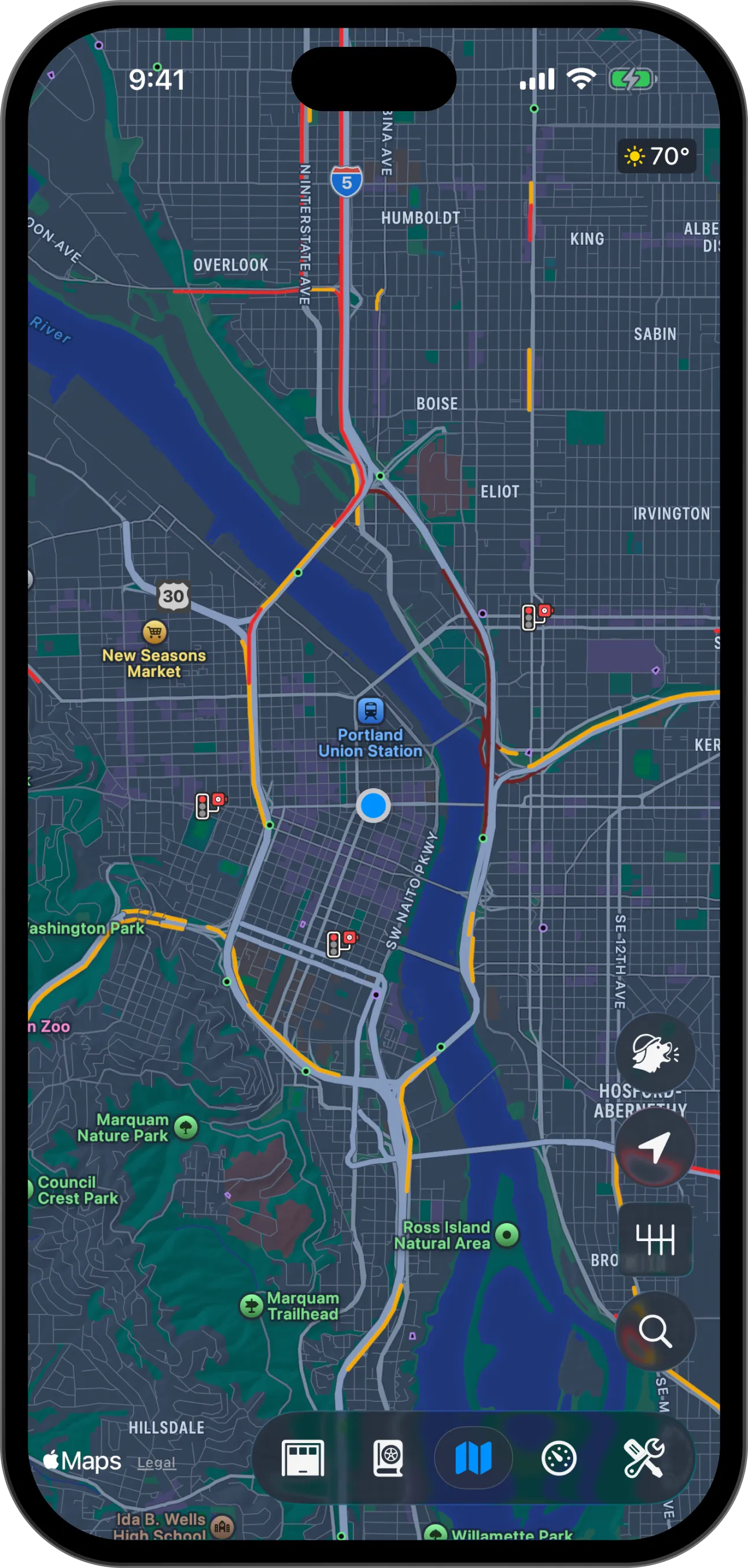
The map

The map is how you navigate the world around you.
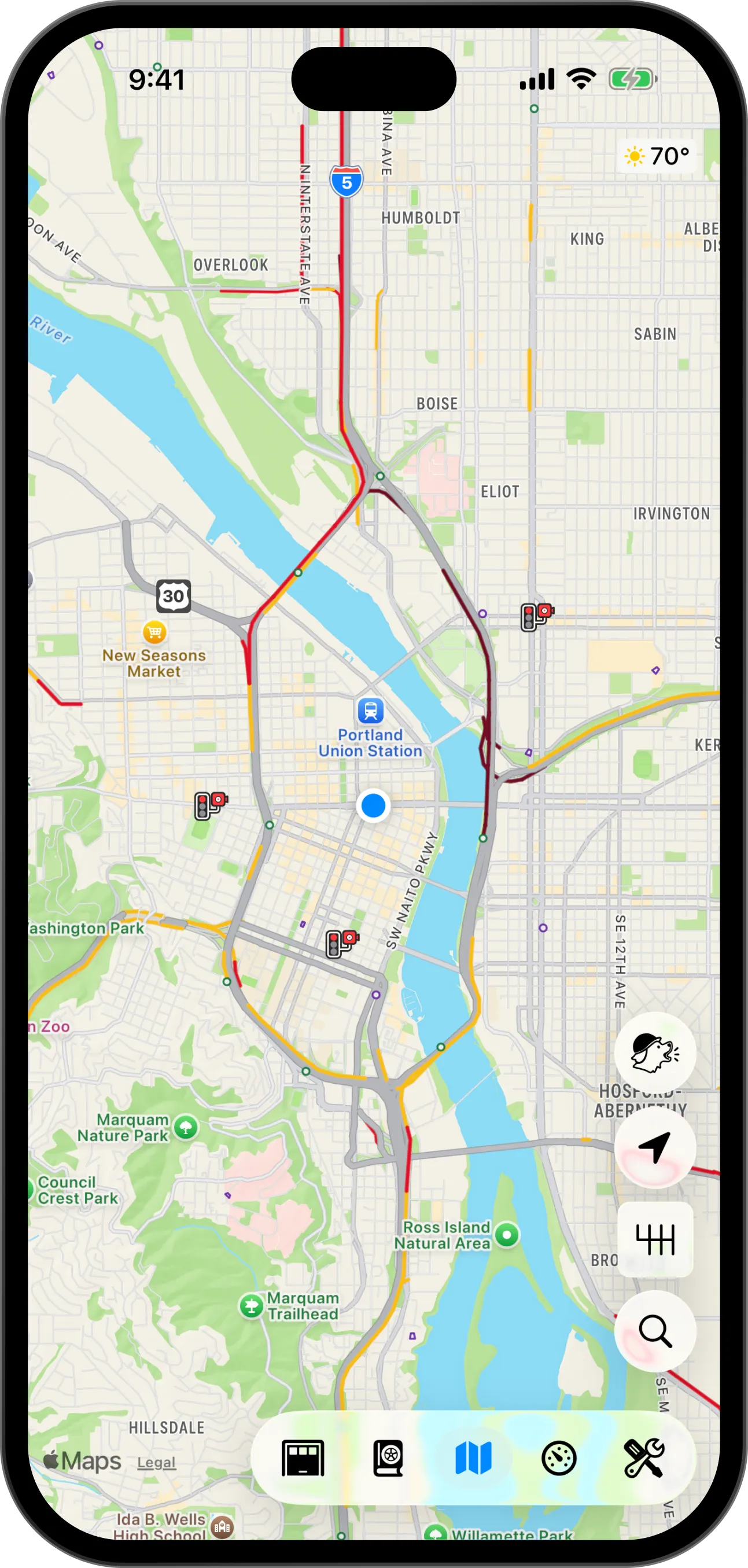
The Pelican map, with the search button, the Scout button, the camera mode button, the map settings button and the context switcher markedThe Pelican map, with the search button, the Scout button, the camera mode button, the map settings button and the context switcher marked
Your locationScout reportCamera modeMap settingsSearchContext switcher
  1. Your location
  2. Scout report
  3. Camera mode
  4. Map settings
  5. Search
  6. Context switcher

Your dashboards

Dashboards are customizable canvases for your car. Tap and hold anywhere to edit it, and swipe to switch dashboards.
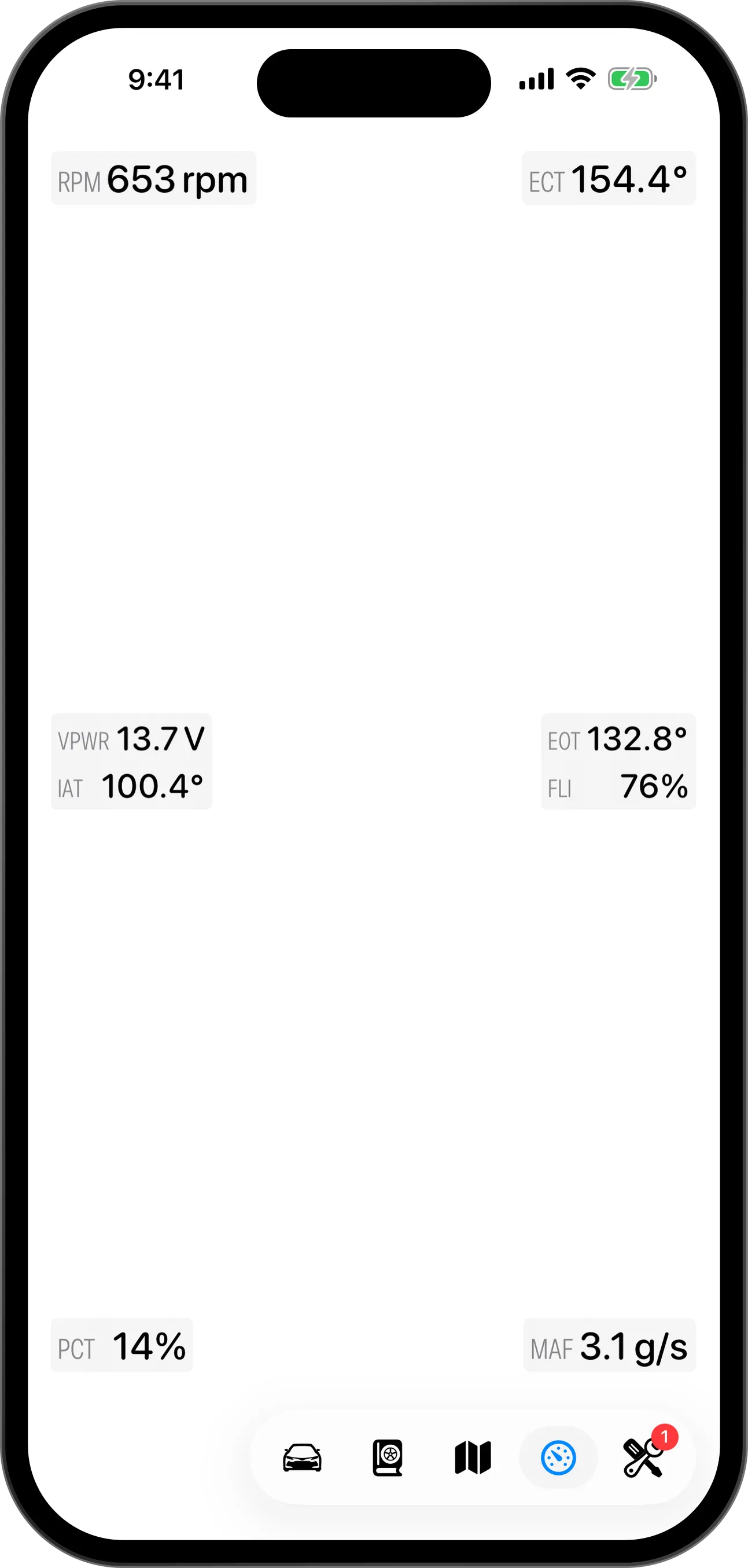
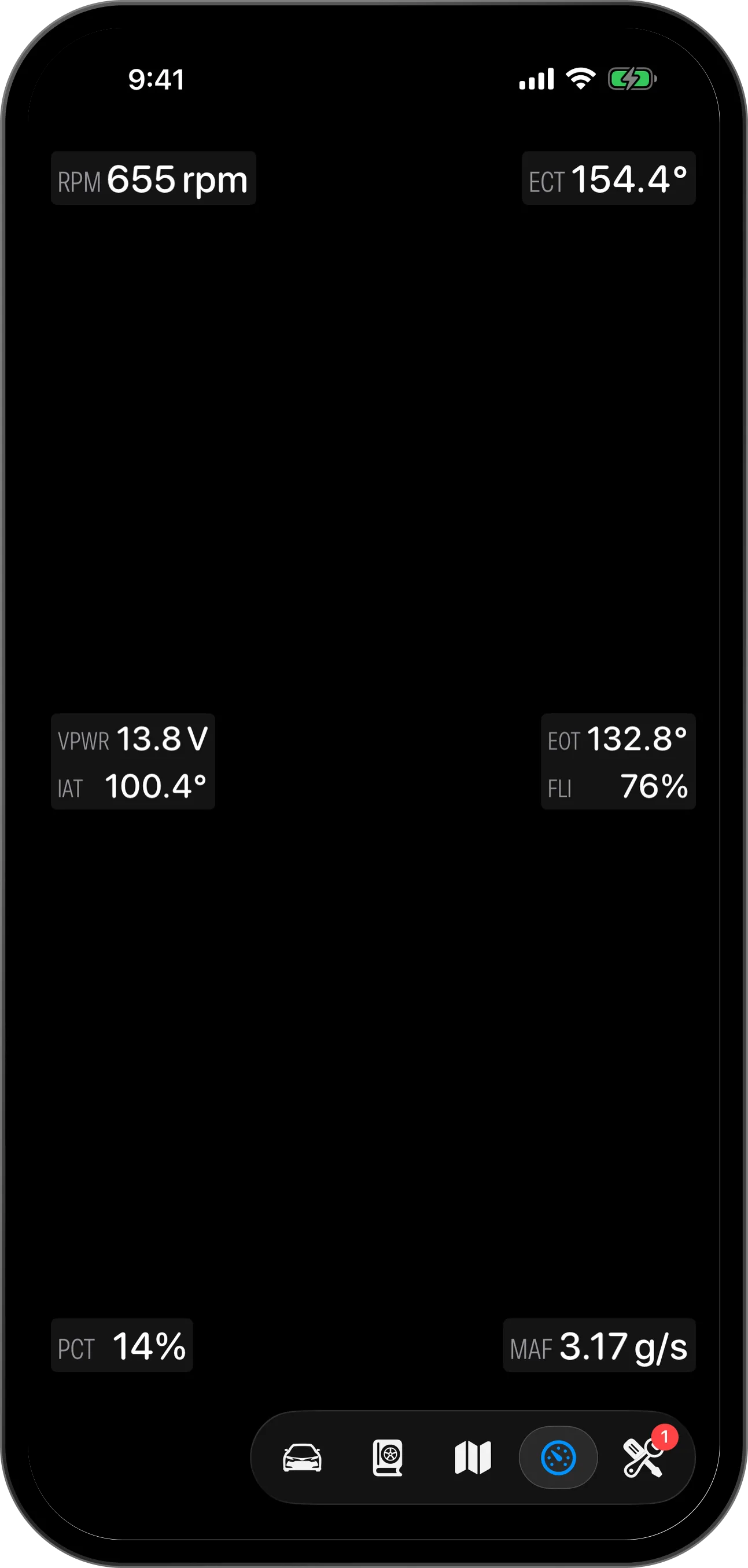
A dashboard, with a widget, the open space and its button in the context switcher markedA dashboard, with a widget, the open space and its button in the context switcher marked
WidgetHold anywhere to editYour dashboards
  1. Widget
  2. Hold anywhere to edit
  3. Your dashboards

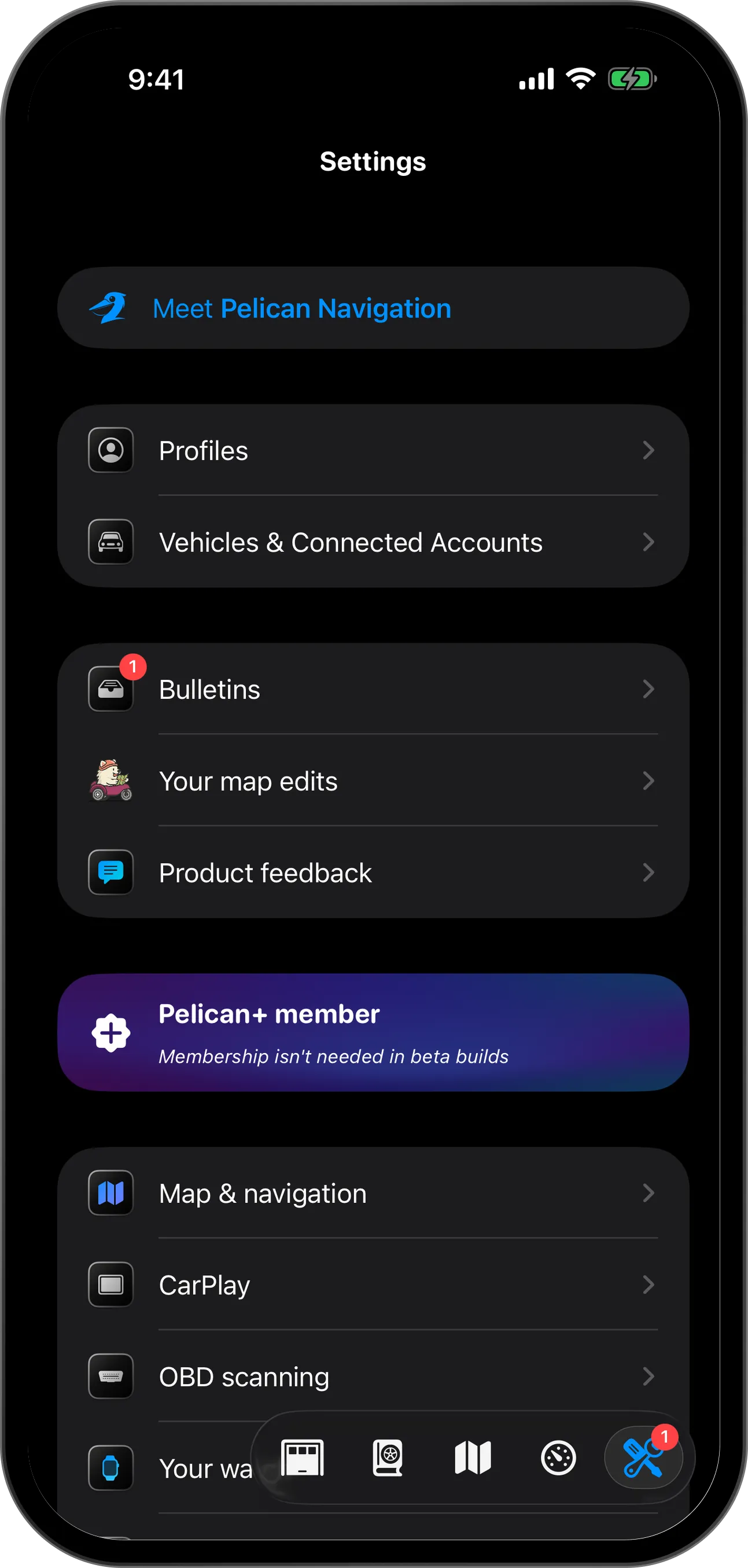
Settings

Customize any part of Pelican to your liking here.
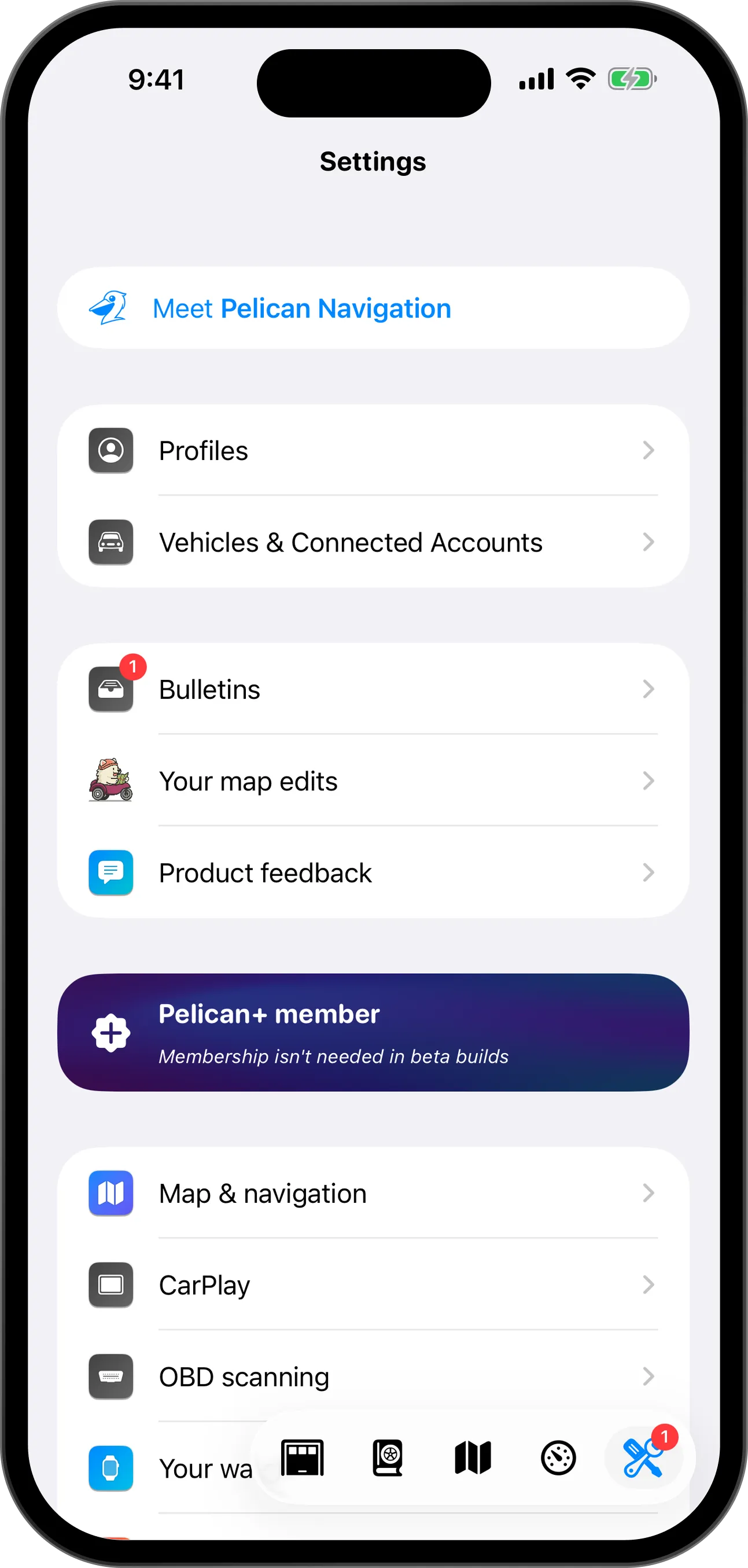
  1. Profiles
  2. Cars & Connected Accounts
  3. Your map edits
  4. Product feedback
  5. Map & navigation
  6. CarPlay
  7. Settings

Ready to go somewhere? See Get directions.

Keyboard shortcuts

for/
Search the Handbook.
⌘K
Search the Handbook, also while you type in a field.
Esc
Close the search or a dialog.
?
Show these shortcuts.