Time for your first drive! A coffee shop, a friend’s place, the grocery store. Anywhere works.
Every drive starts on the map.
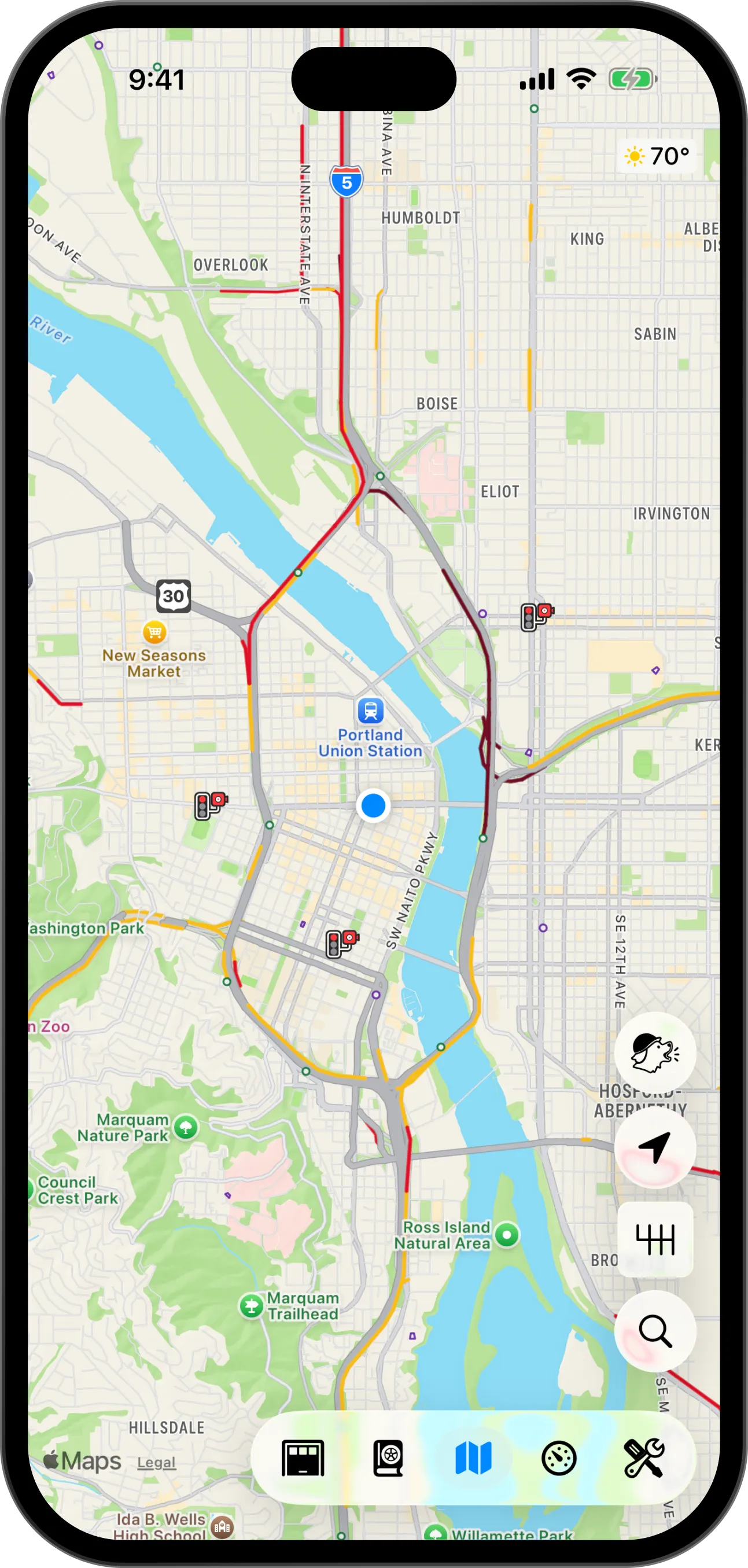
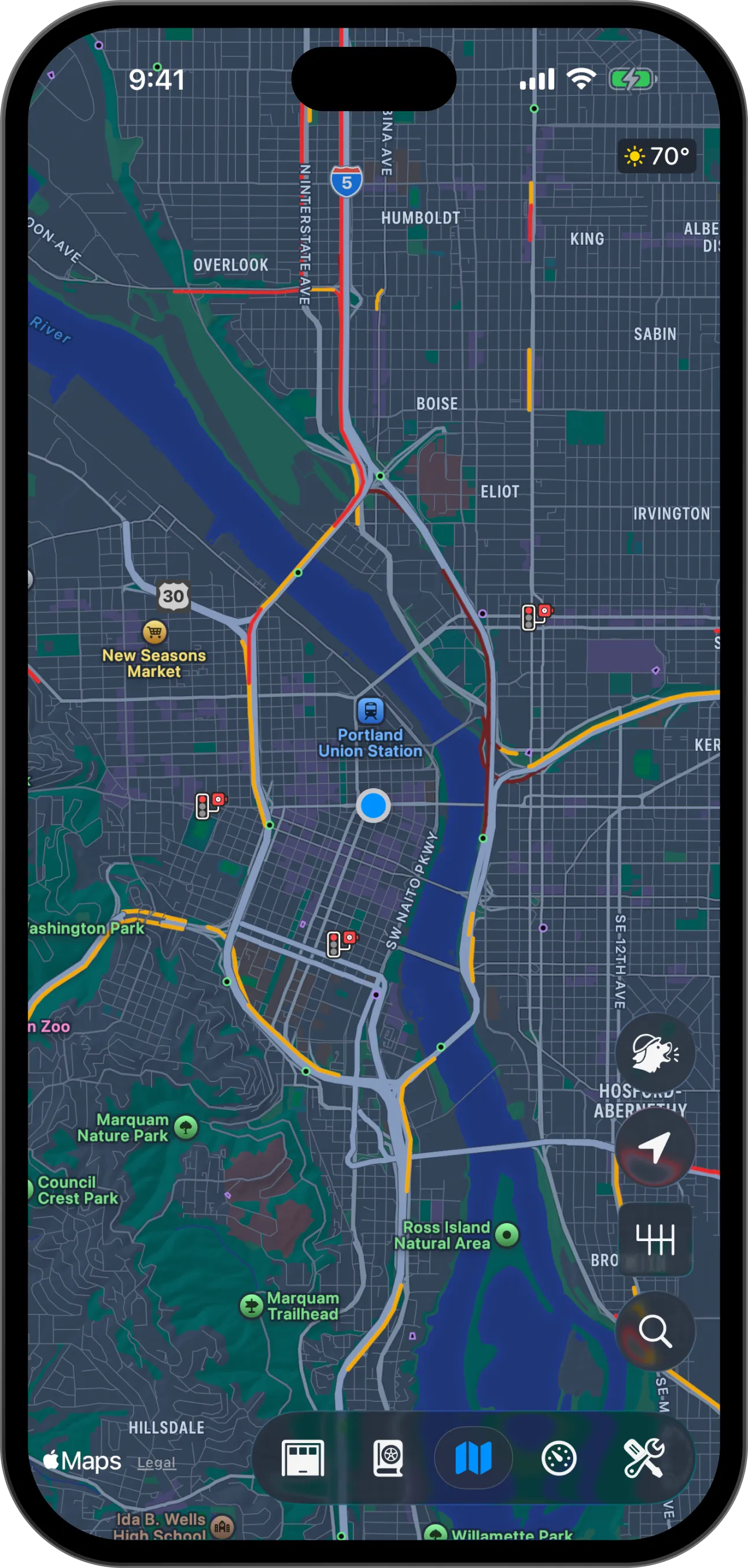
- Your location
- Scout report
- Camera mode
- Map settings
- Search
- Context switcher
Find a place
- On the map, tap the search button.
- Type the name or the address of the place.
- Tap the place in the results.
The map instantly shows the route to the top result.
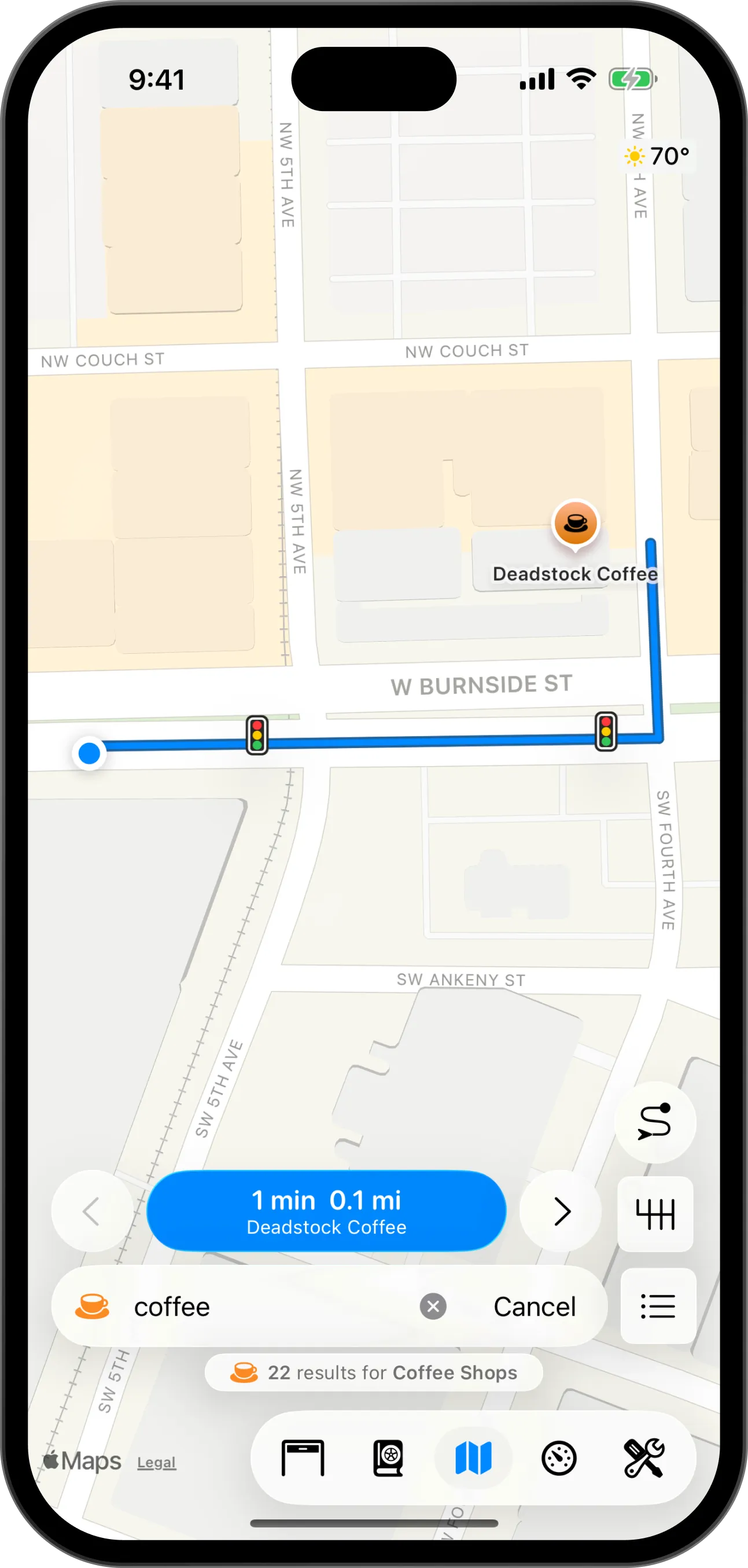
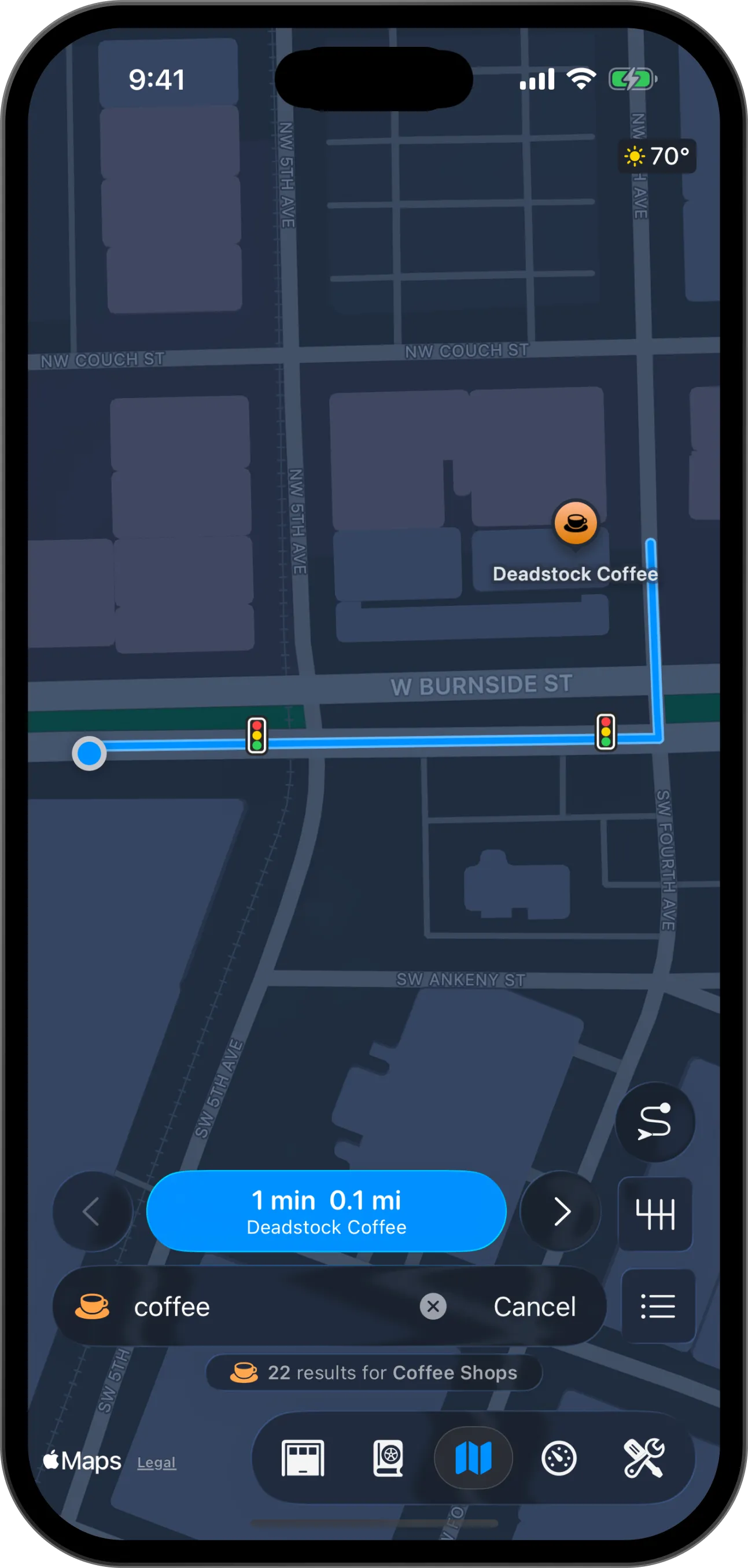
- Your route
- Start navigating
- Search field
- The place
- Camera mode
- Results list
The arrows beside the blue button let you quickly flip through the results. To see them all as a list, tap the result list button.
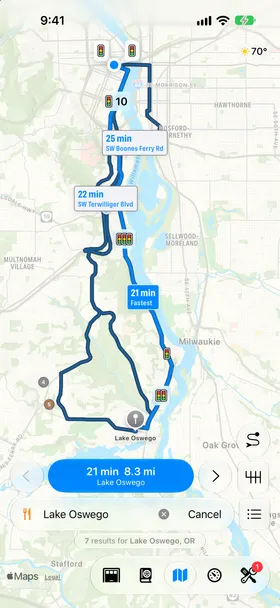

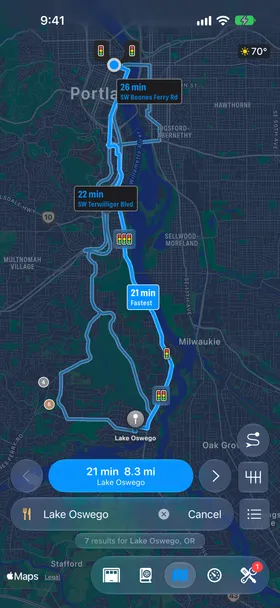
Pick a route
Pelican will show alternate routes when available. Tap any route line to change to it.
The selected route will also show you how many stop signs, traffic lights, and other road fixtures are on the route.
- Stop sign
- Yield sign
- Traffic light
- Red light camera
- Speed bump
- Speed hump
Start navigating
Tap the blue navigate button to start your trip. You’re on your way!
As you drive, the trip card shows your ETA and remaining distance.
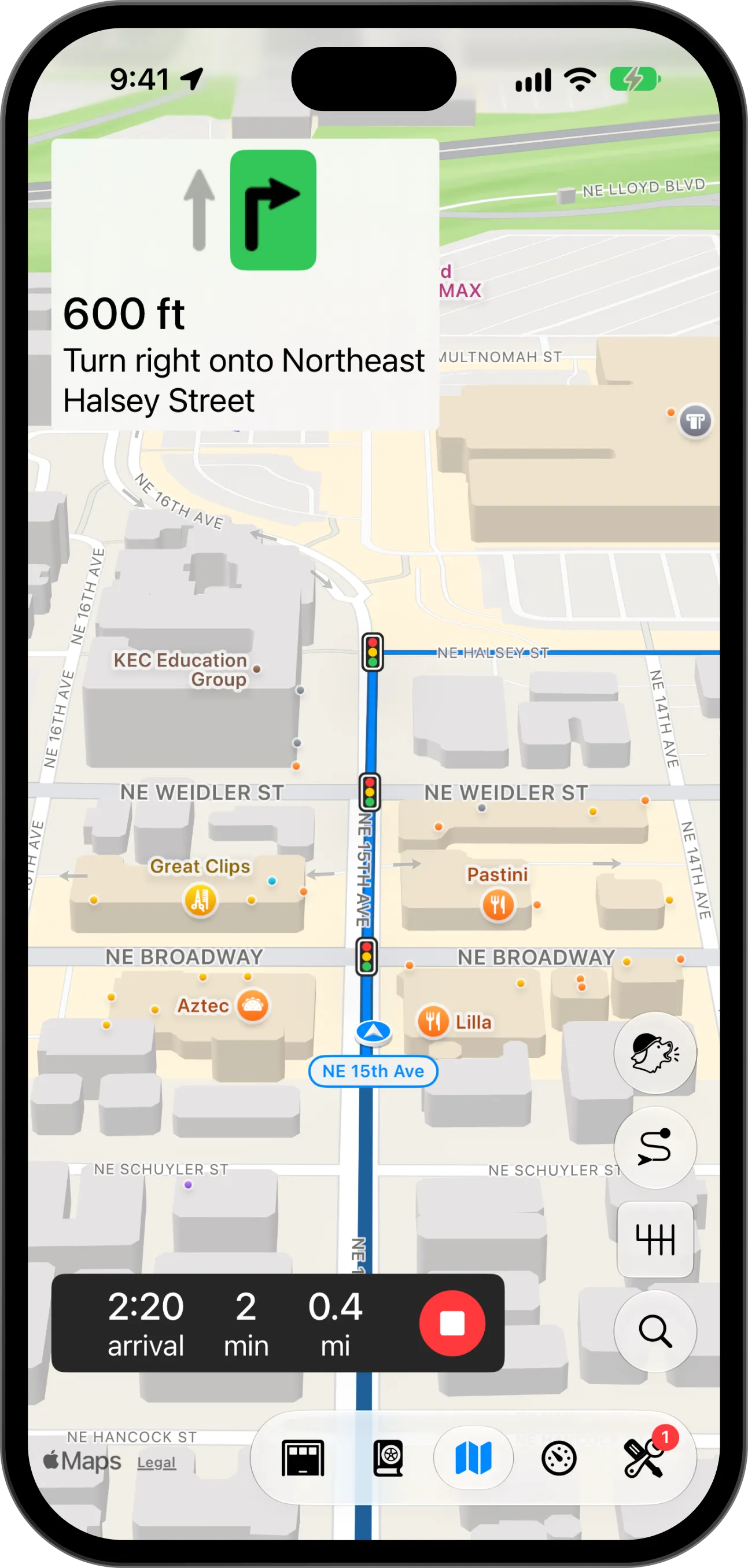
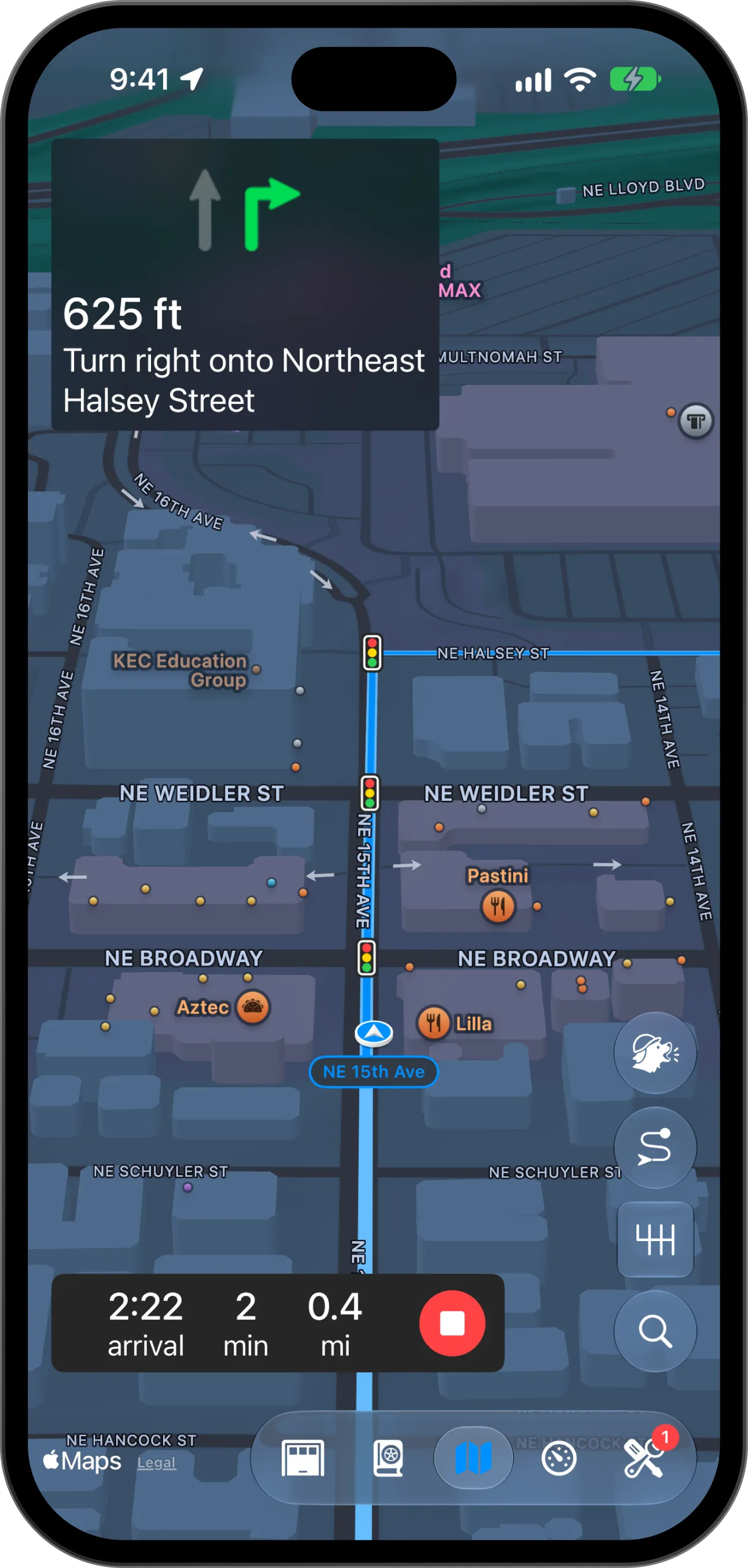
- Next turn
- You
- Trip card
- Scout report
- End route
Connected to CarPlay? Your route will automatically show up there too. To start routes from CarPlay, see Drive with CarPlay.
End the route
Tap the red stop button on the trip card to end the route early. You can also tap the map settings button, then tap End route. In CarPlay, press End route in the top bar.
Open addresses in Pelican
In the European Union and Japan, you can make Pelican your default navigation app. Then an address you tap in another app opens in Pelican.
- Open the iOS Settings app.
- Tap Apps > Default Apps > Navigation.
- Select Pelican.
Where to next?
You did it! Pick what to try next: